Help / Getting started
Set up AnkiConnect for export
To export words from Anki Dictionary straight into Anki, you need AnkiConnect — a free Anki add-on that lets external tools talk to Anki. It takes about two minutes to set up.
Install AnkiConnect
- Open Anki on your computer. If you don't have it yet, download it here (free).
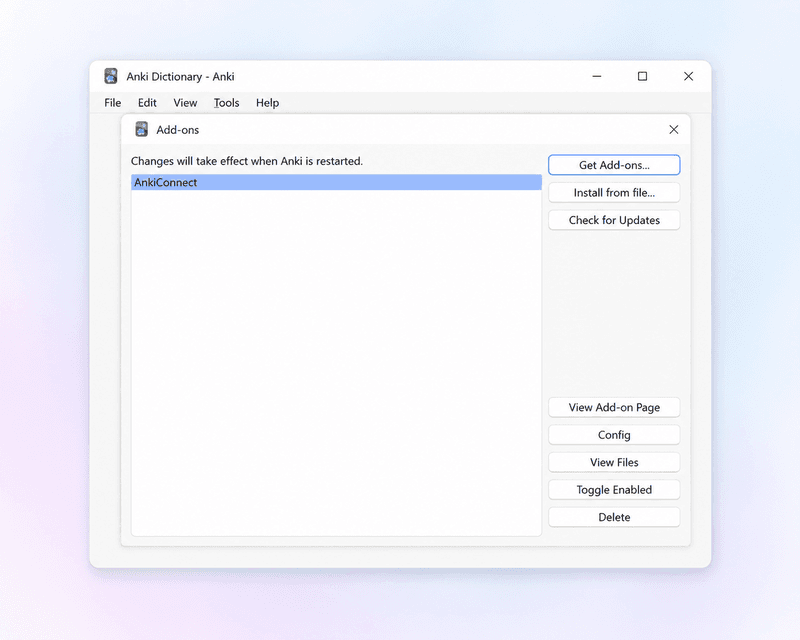
- Go to Tools → Add-ons.
- Click Get Add-ons...
- Paste this code:
2055492159
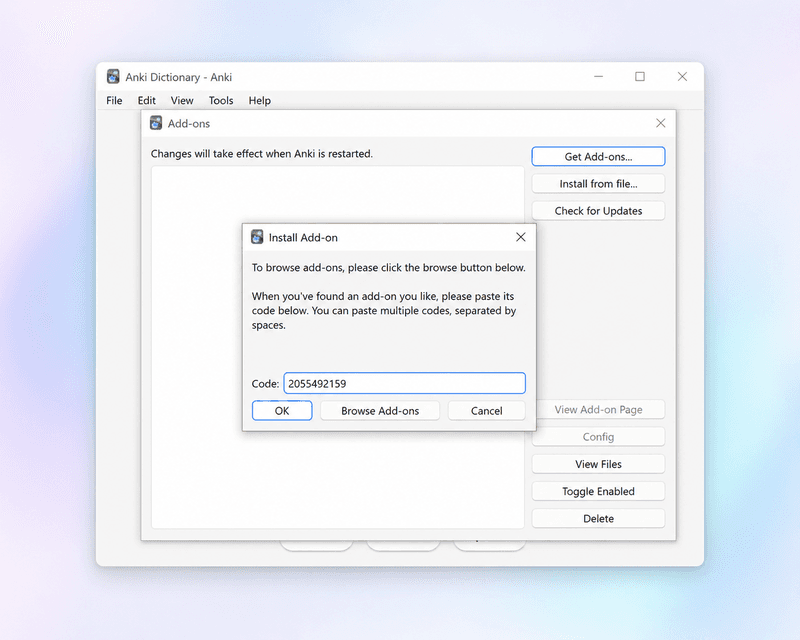
- Click OK, then restart Anki.
That's it. AnkiConnect runs in the background whenever Anki is open — there's nothing to configure.
Exporting your first word
With AnkiConnect installed and Anki running, look up any word with Anki Dictionary and click the export button. The flashcard appears in your Anki deck instantly — no file imports, no copy-paste.
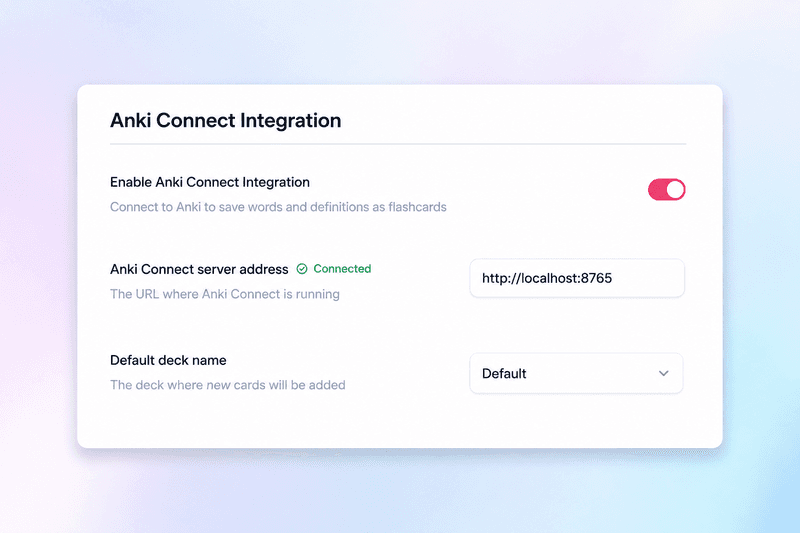
You can choose which deck to export to in the Anki Dictionary settings (click the extension icon, then the gear icon). When AnkiConnect is connected, you'll see a green "Connected" status:
"AnkiConnect not found" error
This means Anki Dictionary can't reach AnkiConnect. Run through this checklist:
- Is Anki open? AnkiConnect only works while Anki is running. Open Anki before you try to export.
- Is the AnkiConnect add-on installed? In Anki, go to Tools → Add-ons and check that AnkiConnect is in the list. If it's not, follow the install steps above.
- Did you restart Anki after installing? The add-on won't activate until you restart.
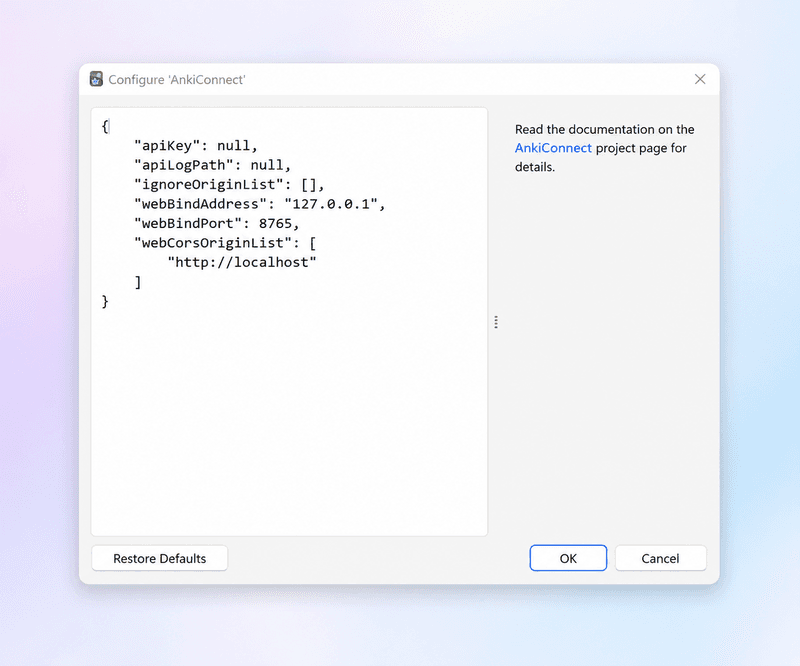
- Browser blocking localhost? Some browsers or security extensions block connections to
localhost. If you've confirmed the steps above, try disabling any ad-blocker or security extension temporarily to see if that's the cause. You can verify AnkiConnect's address in its config (select AnkiConnect in Tools → Add-ons, then click Config):
Don't want to install AnkiConnect?
You can also export your words as a .txt file and import it into Anki manually. This works without AnkiConnect or even without Anki running — but it's a few extra steps each time compared to one-click export.