Help / Core workflow
Look up words in a PDF
Open a PDF in your browser and double-clicking a word does nothing. That's because the built-in PDF viewers in Chrome, Edge and Firefox block every extension, not just Anki Dictionary. The fix is to open the PDF in a viewer that runs as a normal web page.
Open the PDF in the PDF.js web viewer
PDF.js is the free, open-source viewer made by Mozilla (the same one built into Firefox). Its web version is an ordinary page, so Anki Dictionary works on it in any browser it supports.
- Save the PDF to your computer if it's online.
- Open mozilla.github.io/pdf.js/web/viewer.html in your browser. It opens with a sample document.
- Drag your PDF onto the page. Or click the » button in the top right, choose Open and pick the file. The file opens in your browser and isn't uploaded anywhere.
- Double-click any word (or use your trigger key) to look it up, then add it to Anki with its sentence as usual.
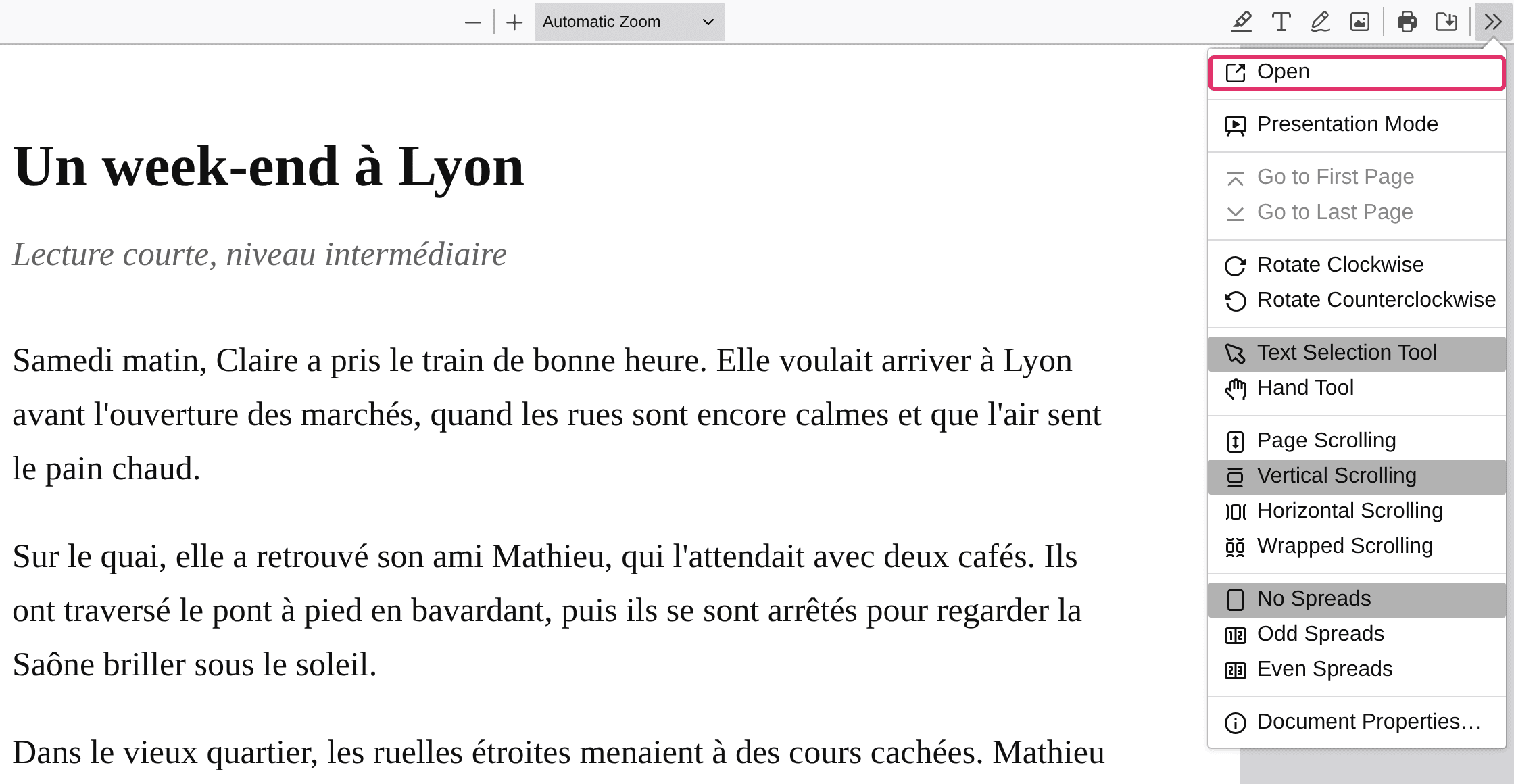
Opening a PDF from the » menu.
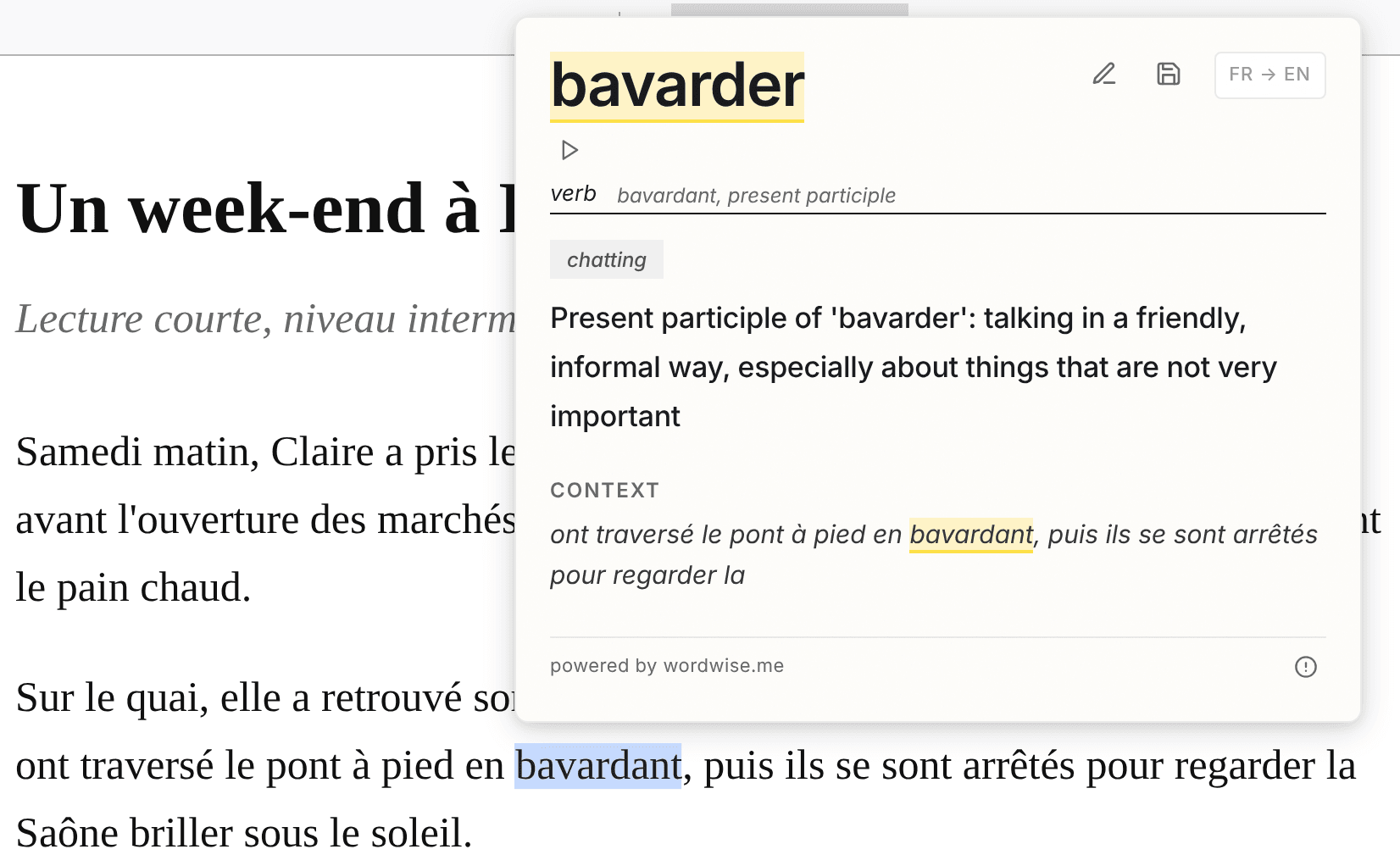
Double-click a word and the lookup appears, with the sentence as context.
Tip: bookmark the viewer page so it's one click away next time.
If it still doesn't work
- You can't select the text. The PDF is a scan (pictures of pages), so there's no text to look up. Run it through an OCR tool first to add a text layer.
- The page was open before you installed. Refresh it. See refresh pages after installing.
More getting-started guides