Help / Core workflow
Export words to Anki
Every word you look up with Anki Dictionary is saved to your word list. From there you can export them to Anki as flashcards, either one at a time or in bulk.
One-click export with AnkiConnect
This is the fastest way. With AnkiConnect set up and Anki running:
- Look up a word on any webpage.
- Click the export button in the popup (the save icon in the top right).
- The flashcard appears in your Anki deck instantly. Done.
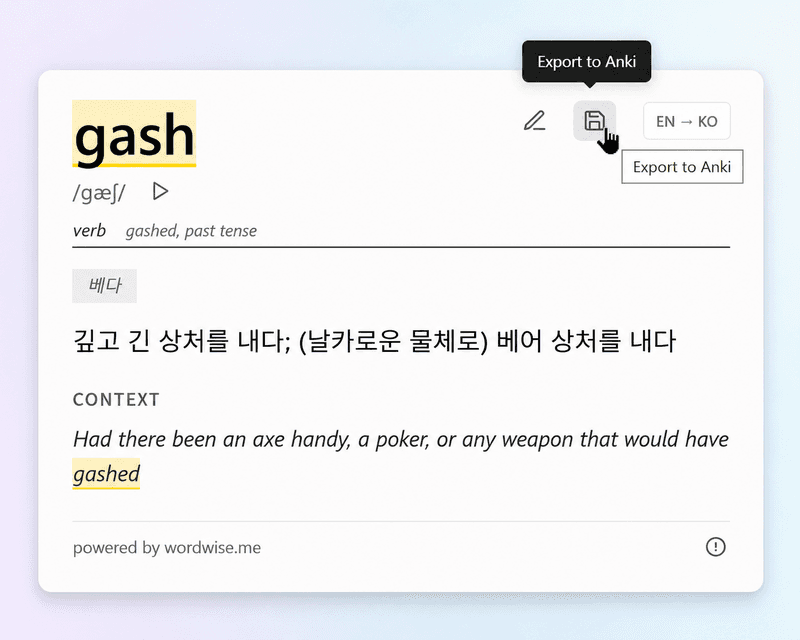
You can choose which deck to export to in the extension settings (click the extension icon, then the gear icon, then scroll to Anki Connect Integration).
Bulk export from Lookup History
You can also export multiple words at once from your Lookup History. Select the words you want and choose Export to Anki to send them directly via AnkiConnect, or Download as .txt if you prefer to import the file manually.
- Click the extension icon and then Lookup History.
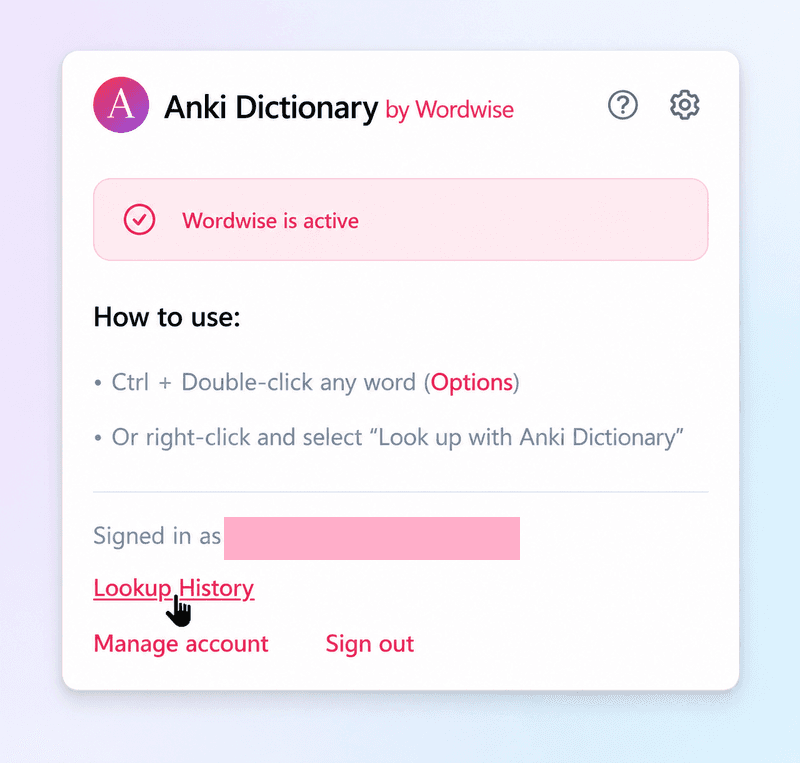
- Select the words you want to export, then click Export to Anki to send them directly, or choose Download as .txt to save a file you can import manually.
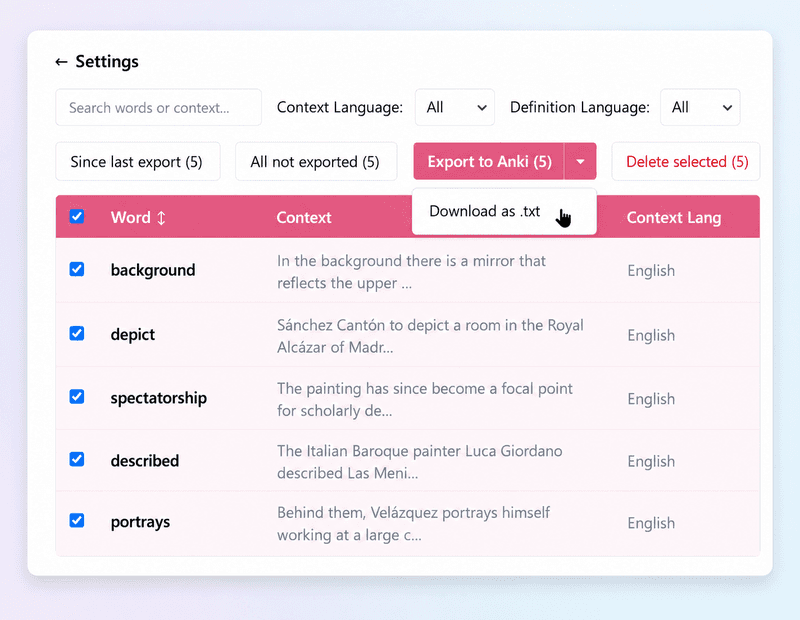
The direct export option requires AnkiConnect and Anki to be running. The .txt option works without either — just import the file into Anki later via File → Import.
What the flashcard looks like
The Anki card looks exactly like what you see in the lookup popup: the word, pronunciation, part of speech, definition, and the original sentence it appeared in. If your definition language is different from the word's language, the direct translation is included too.
By default, Anki Dictionary creates two cards per word: a basic card (word on front, definition on back) and a reverse card (definition on front, word on back). You can turn off reverse cards in the extension settings.
Export not working?
- "AnkiConnect not found" — Anki needs to be open with AnkiConnect installed. See the AnkiConnect setup guide for the full troubleshooting checklist.
- If something else is off, reach out at help@wordwise.me.
More getting-started guides