Help / Core workflow
Look up your first word
Hold Ctrl (Cmd on Mac) and double-click any word on a webpage. The Anki Dictionary popup appears with a definition in context.
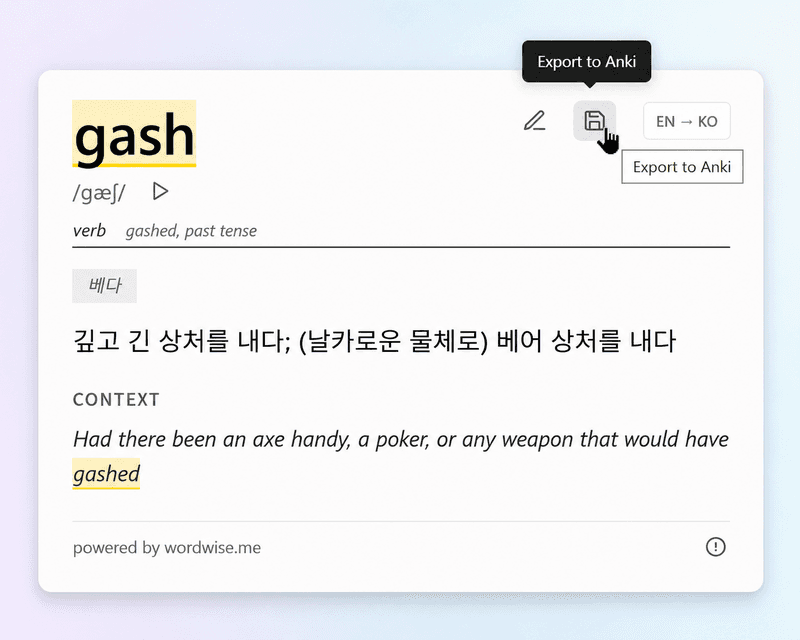
How it works
- Open any webpage with text you want to read.
- Hold Ctrl (or Cmd) and double-click a word.
- The popup appears with the definition, pronunciation, and the sentence the word appeared in.
Other ways to trigger a lookup
You can also right-click any selected word and choose Look up with Anki Dictionary from the context menu.
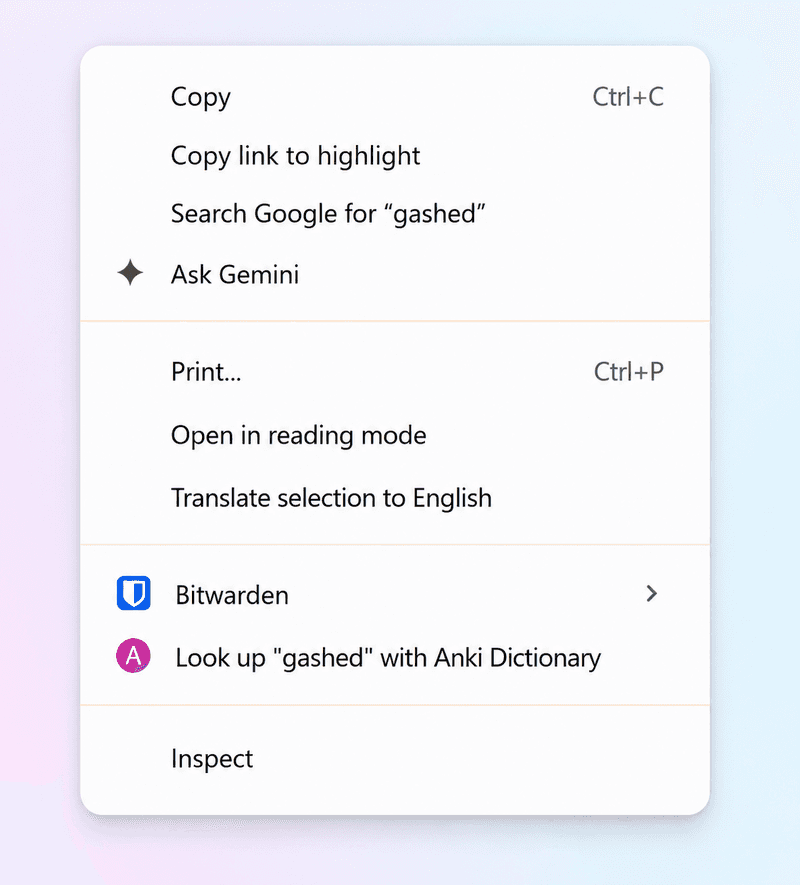
The default keyboard trigger is Ctrl+double-click, but you can change it. Open the extension settings (click the extension icon, then the gear icon) and pick a different option under Trigger key. Options include double-click only, Alt+double-click, and more.
Where it works
Anki Dictionary works on regular webpages: news sites, blogs, documentation, Wikipedia, forums, and most other sites with selectable text.
It does not currently work on:
- Kindle Cloud Reader (
read.amazon.com) — Amazon uses a custom rendering engine that prevents extensions from accessing the text. - Browser internal pages (
chrome://URLs, the Chrome Web Store). - PDF viewers built into the browser.
Page not responding to lookups?
- If the page was open before you installed, it needs a refresh. See refresh pages after installing.
- Make sure the extension is enabled — click the puzzle-piece icon in your toolbar and check that Anki Dictionary is toggled on.
- Some sites with strict security policies may block the content script. Try a different page to confirm the extension is working.
More getting-started guides