Help / Getting started
Choose your languages
Anki Dictionary automatically detects the language of the word you look up — you don't need to set a target language. The only thing you choose is your definition language: the language you want explanations in.
How to set your definition language
- Click the Anki Dictionary extension icon in your browser toolbar.
- Click the gear icon in the top right to open settings.
- Under Preferred language, pick the language you want definitions in (e.g. English, Spanish, Japanese, Korean).
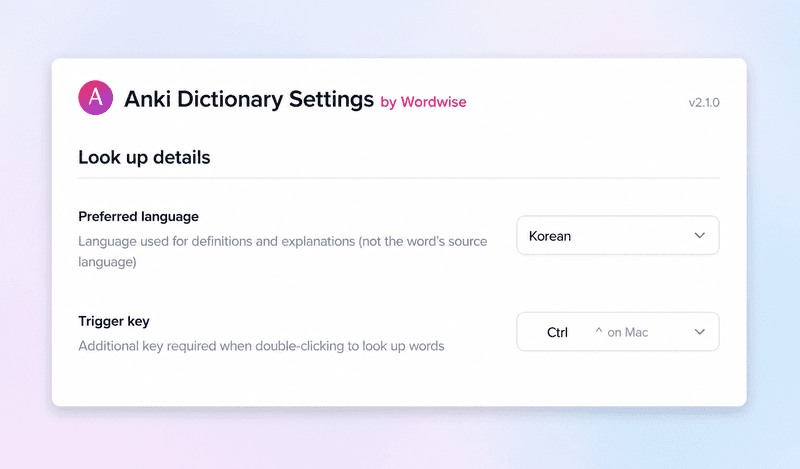
You can change this anytime — it takes effect on your next lookup.
How language detection works
When you look up a word, Anki Dictionary detects the language from the surrounding text on the page. You can look up a German word on one tab and a Spanish word on another — no switching needed.
This means you can learn multiple languages at the same time without changing any settings between lookups.
When the detected language is different from your definition language, the card will include a direct translation alongside the full definition — so you get both the quick answer and the detailed explanation.
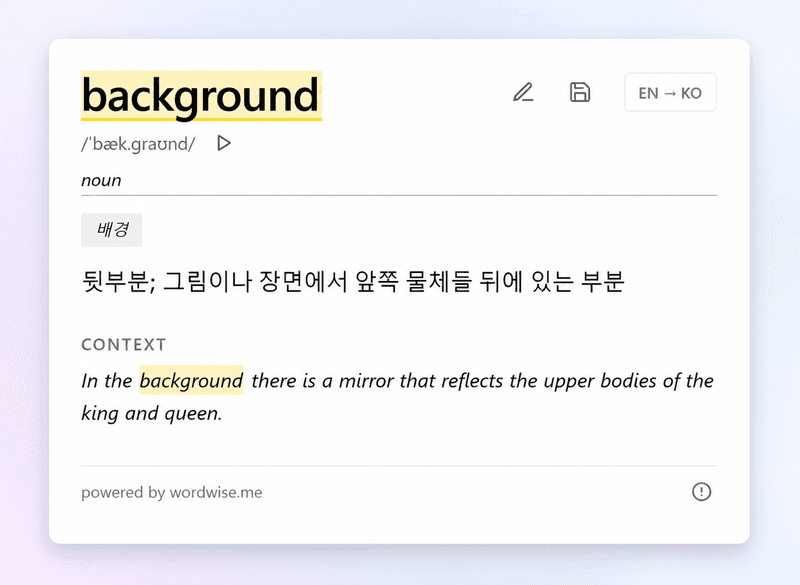
Looking up an English word with Korean as the definition language — the direct translation (배경) appears above the full definition.
Which languages are supported?
Anki Dictionary supports 22 languages: English, Spanish, French, German, Italian, Portuguese, Russian, Japanese, Korean, Chinese, Arabic, Dutch, Swedish, Norwegian, Danish, Finnish, Polish, Czech, Slovak, Hungarian, Romanian, and Turkish.
Not sure if your language is supported? Just try looking up a word — if it works, it's supported. If your language isn't available yet, email us at help@wordwise.me to request it.
More getting-started guides