Help / Getting started
Set a separate translation language
Each lookup shows a full definition and a short translation above it. By default both are in your definition language. Since version 2.7.0 you can pick a different language for the translation.
A common setup: read in English, get the definition in English to stay immersed, and keep a one-word Korean translation as a quick check that you understood it.
How to set it
- Click the Anki Dictionary extension icon in your browser toolbar.
- Click the gear icon in the top right to open settings.
- Under Preferred language, pick the language you want definitions in (e.g. English).
- Under Translation language, pick the language for the short translation (e.g. Korean).
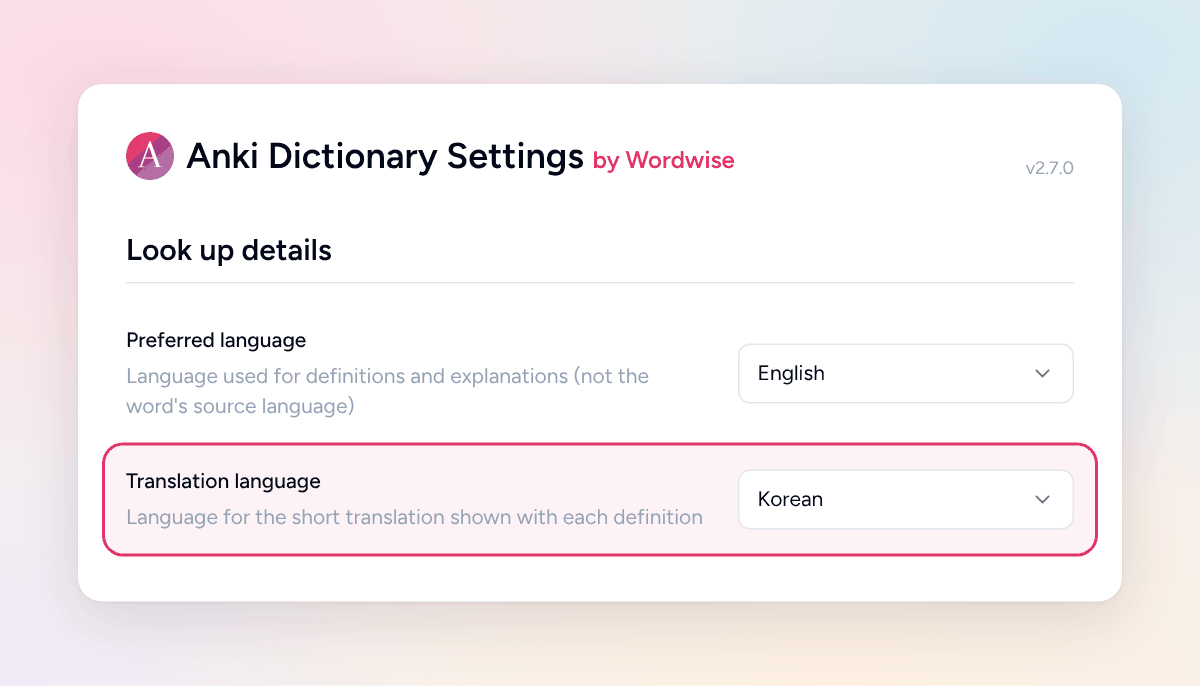
The change applies to your next lookup. No page refresh needed.
What a lookup looks like
With English definitions and a Korean translation, looking up "considering" gives you the English explanation with 고려하다 above it.
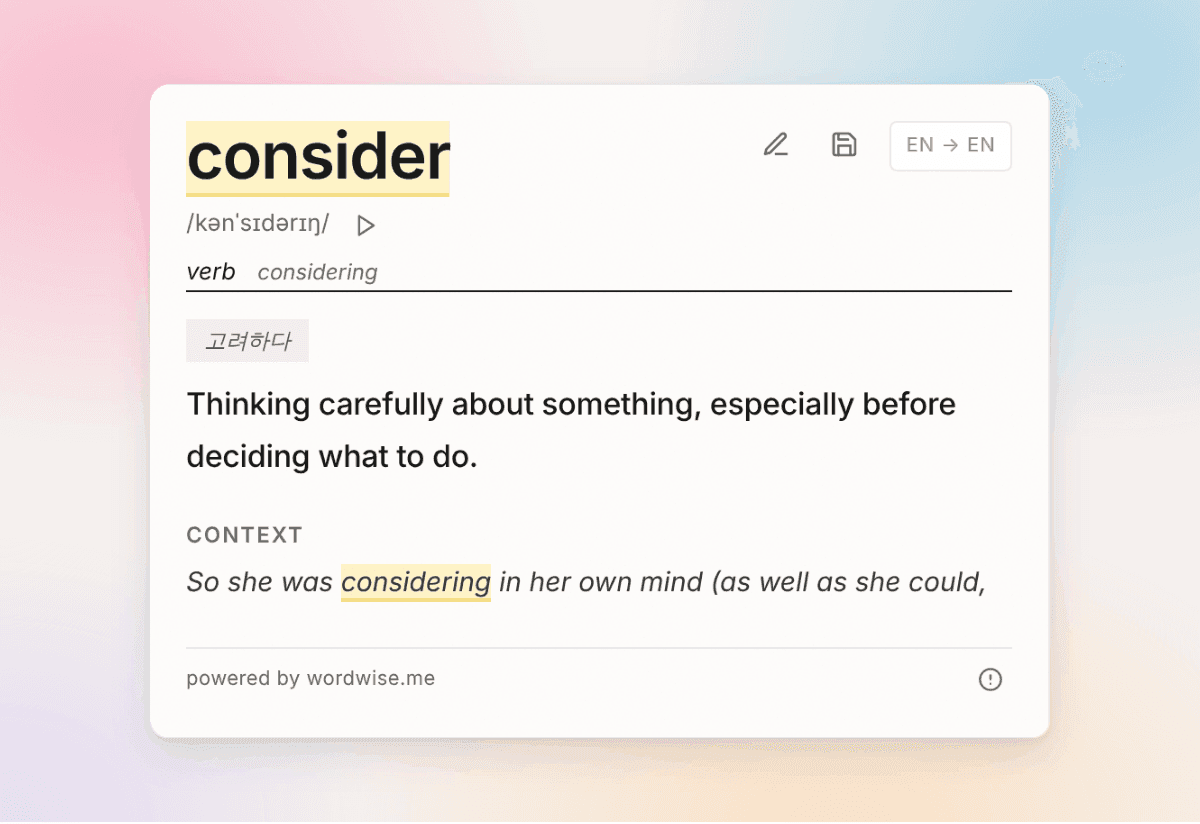
English definition, Korean translation. Exported Anki cards keep both.
Good to know
- Same as definition language is the default. Pick it to go back to one language for both.
- The translation is left out when the word is already in your translation language. Looking up a Korean word with a Korean translation shows only the definition.
- A translation into any language other than English is a premium feature, the same as non-English definitions. Log in to the extension if you have a subscription.
- Don't see the setting? You need version 2.7.0 or later. The version number is shown at the top right of the settings page.
- Don't see a translation in your lookups? Check that Show direct translation when possible is on in settings. It is on by default.
More getting-started guides