Help / Core workflow
Offline audio and autoplay
Turn on Offline Audio and every word you export brings its pronunciation file into Anki. The audio plays without internet, syncs to your phone, and plays by itself when the card comes up.
What changes when you turn it on
- Off: the card carries a play button you tap yourself. Anki never plays it on its own.
- On: the MP3 is saved in Anki's media folder and added as a regular Anki sound. It works offline, syncs through AnkiWeb to AnkiDroid and AnkiMobile, and autoplays.
Before you start
- It's part of Advanced export settings, which need a Wordwise subscription (the free trial counts).
- Export has to go through AnkiConnect, with Anki open on your computer. See Set up AnkiConnect. The .txt export can't carry audio files.
- Chrome and Edge only. Firefox blocks the audio download, so the option is hidden there.
Turn on Offline Audio
- Click the Anki Dictionary icon in your browser toolbar, then the gear icon in the top right to open Settings.
- Scroll to Advanced export settings.
- Turn on Offline Audio. It saves right away.
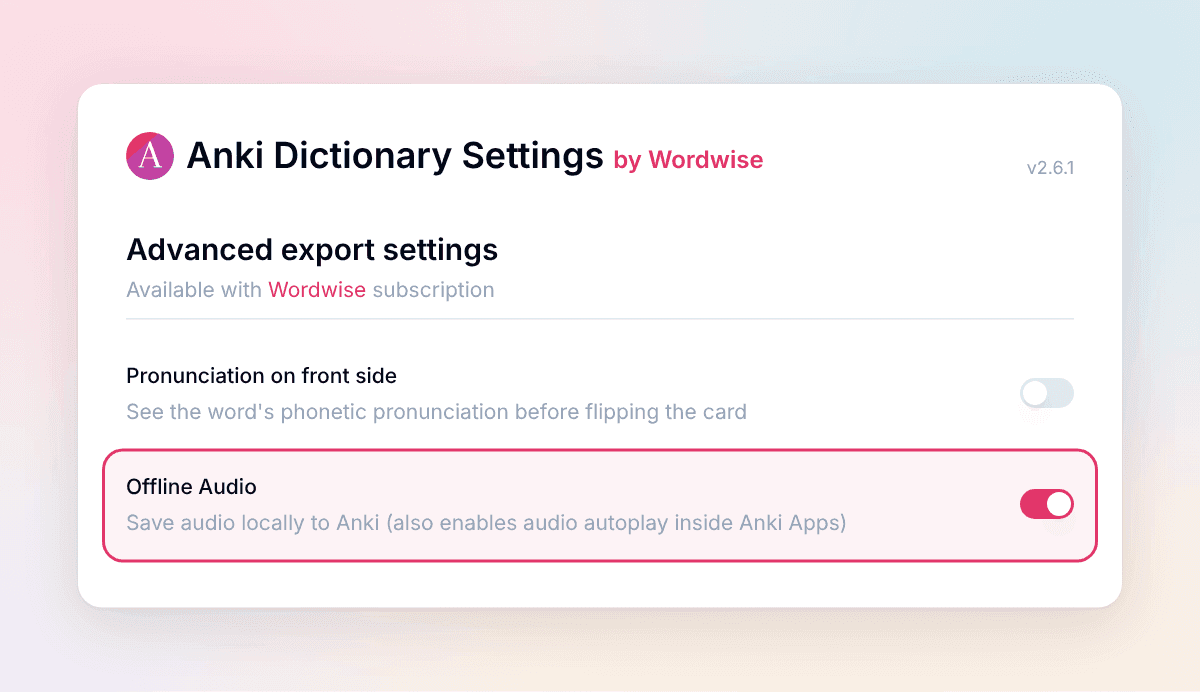
New exports now use the Wordwise Audio note type, which Anki Dictionary creates for you the first time.
Why offline audio can autoplay
Without Offline Audio, the pronunciation is a play button inside the card. Anki treats it as part of the page, so it only plays when you tap it.
With Offline Audio, the MP3 lives in Anki's own media folder and the card points to it as a native Anki sound. By default, Anki plays native sounds automatically as soon as that side of the card is shown, on desktop, AnkiDroid and AnkiMobile alike, so you hear the word without touching anything.
Hear the word before you flip the card
By default the audio sits on the back, so it plays when you reveal the answer. Turn on Pronunciation on front side in the same section and the pronunciation and audio move to the front. With Offline Audio on, the word plays the moment the card appears.
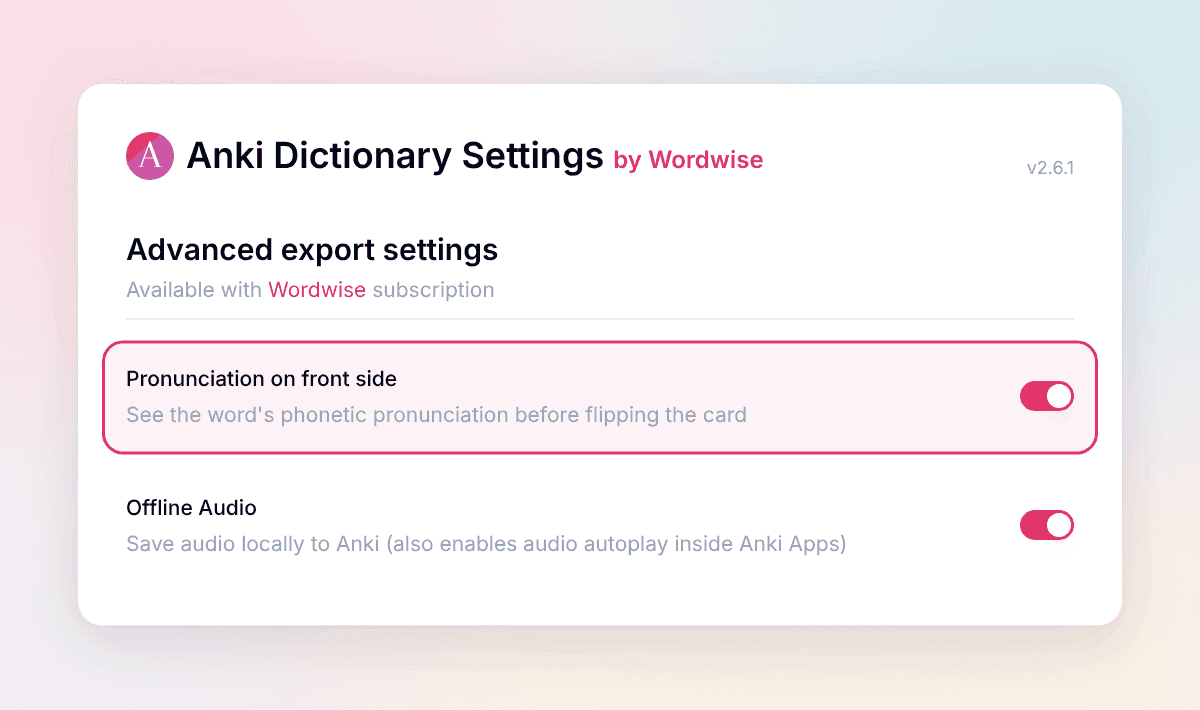
That's handy for listening practice, but it gives the word away before you've tried to recall it. If you'd rather test yourself first, leave it off.
Still not hearing anything?
- The setting only applies to new exports. Cards you exported before keep the play button they had.
- On your phone, sync Anki on your computer first, then sync the phone, so the audio files come across.
- For cards with broken audio from older versions, see Fix broken audio.
- Still stuck? Email help@wordwise.me.
More getting-started guides